

Develop
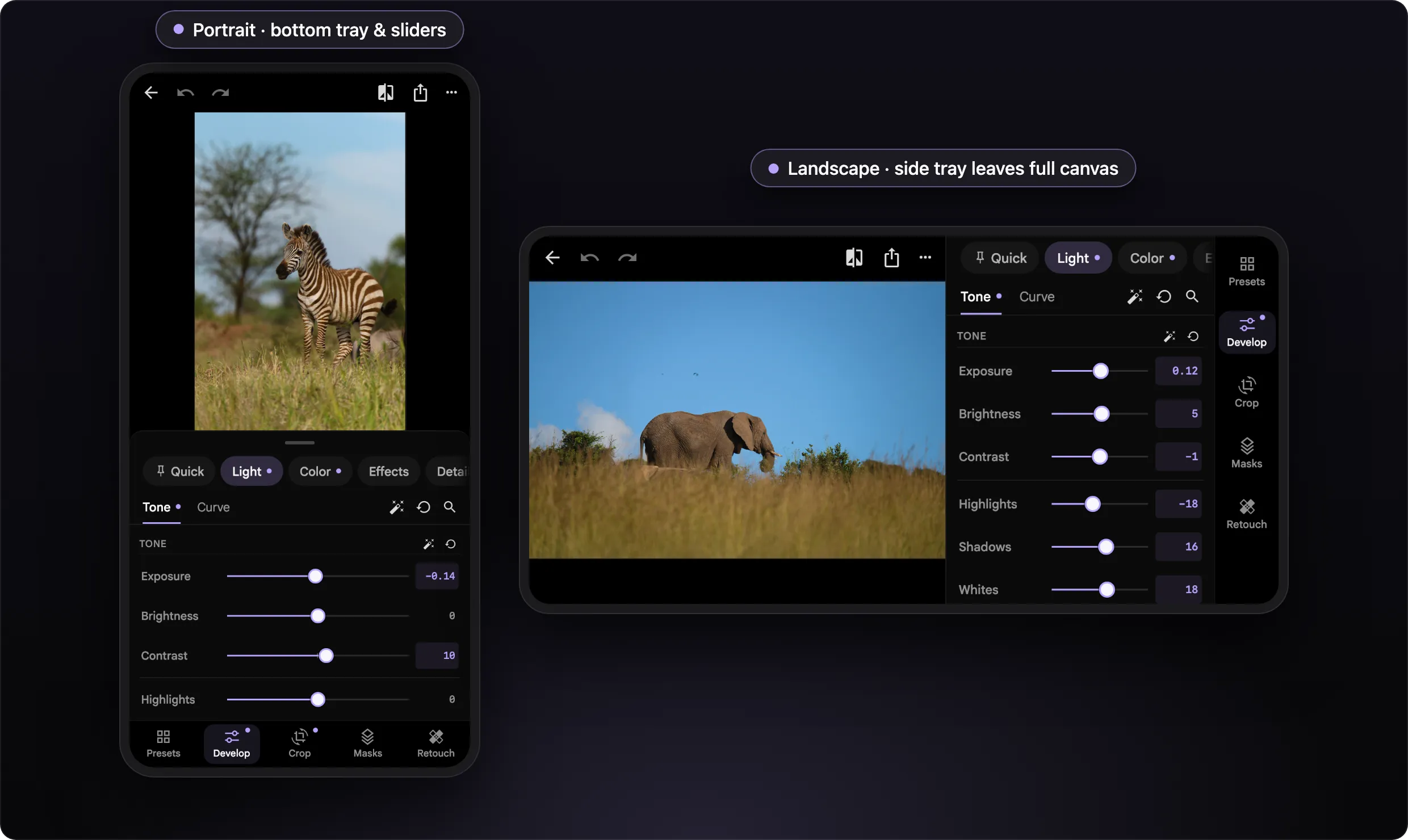
Work through Develop from top to bottom. Double-click any slider label to reset it, click its
value to type a number (arithmetic like +0.5 works), or hold a modified section header to preview
without that section. Click a panel’s modified dot to reset the whole panel.
Camera profile and tone
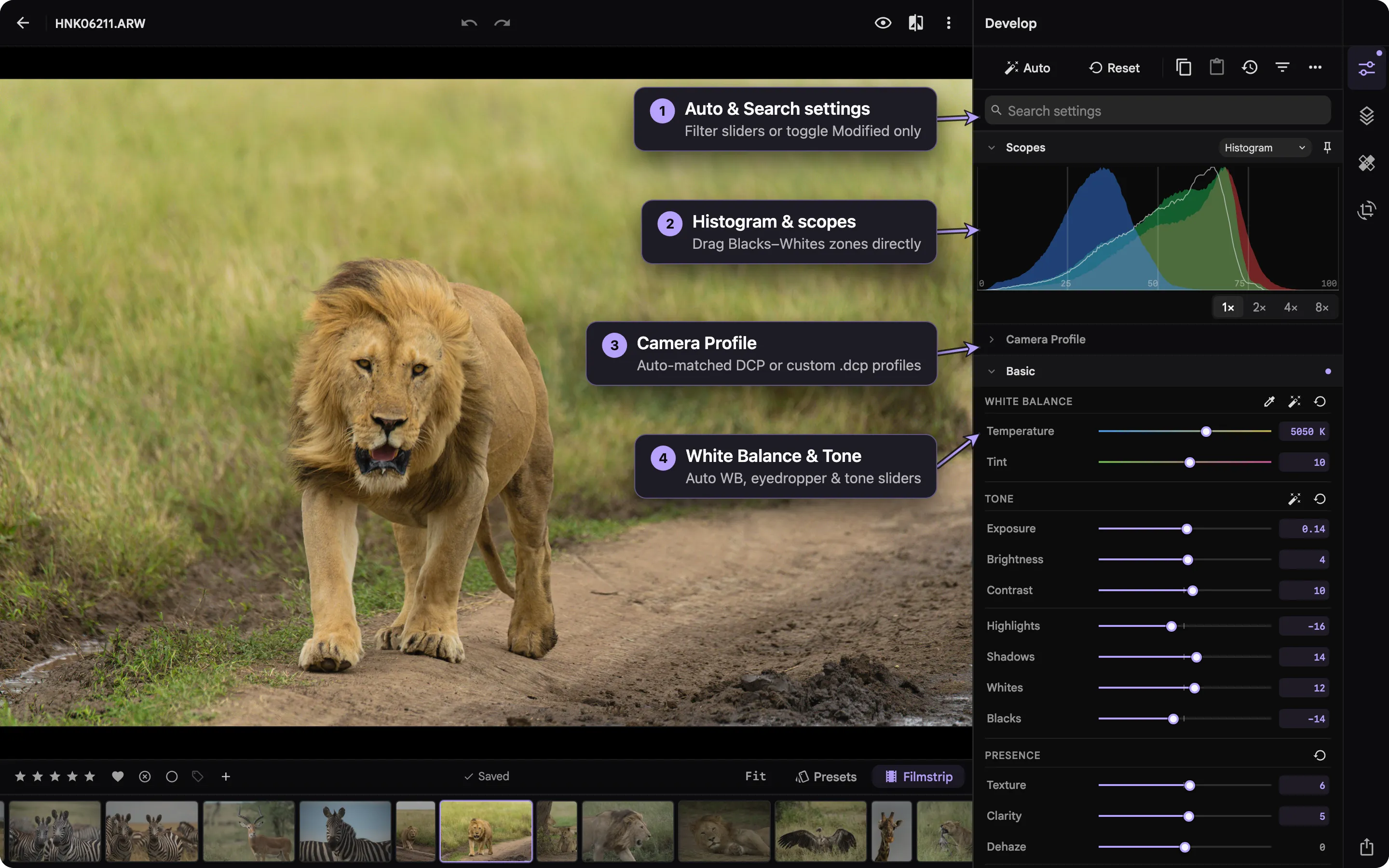
Section titled “Camera profile and tone”- Camera Profile: Auto match picks the matching DCP profile for most RAW files; Default
Color and Flat give neutral starting points. Administrators can import custom
.dcpprofiles here. - White Balance: RAW files adjust in absolute Kelvin and Tint; non-RAW files use relative offsets. Use Auto WB or the eyedropper — click a neutral spot or drag a box to average an area with a live temperature/tint readout.
- Basic: Auto (
Ctrl+U) sets white balance, tone, presence, and saturation (weighting detected faces); Auto Tone adjusts tone only. On desktop, hover the histogram to drag Blacks, Shadows, Exposure, Highlights, and Whites directly.
Color, curves, and black & white
Section titled “Color, curves, and black & white”- Curves: edit composite RGB, individual R/G/B channels, or Luma. Hold
Altwhile dragging for fine control, or click the pop-out button for a larger curve editor. - HSL & Color Grading: shift hue, saturation, and luminance per color band, and tint shadows, midtones, highlights, and global tone with wheels.
- Adjust on photo (
T): arm targeted adjustment in HSL, Curves, Black & White, or Color Grading, then drag vertically on the photo to adjust the color or tone under the pointer (Altfor Hue,Shiftfor Luminance in HSL). - Black & White: enable Convert to Black & White for a six-channel monochrome mixer with Shadows and Highlights split-toning wheels.
- LUT: apply an admin-imported
.cube3D LUT with an Amount blend slider (hover to preview in the command palette).
Detail, lens, and effects
Section titled “Detail, lens, and effects”Judge detail tools at 100% zoom (Z):
- Detail: Capture sharpening is enabled by default for RAW files. Add creative sharpening (with Masking to protect smooth areas) and luma/color Noise Reduction. For noisy RAWs, AI Denoise runs once on the server and blends with Strength and Detail (requires an admin-installed model).
- Lens Corrections: applies distortion and vignetting automatically for matched lenses; chromatic aberration is opt-in. Phone and drone DNGs always apply their embedded corrections.
- Lens Blur: click Generate depth (requires the depth model) to blur outside a chosen Focal Range with circle, hexagon, or octagon Bokeh and highlight Boost.
- Effects: add post-crop Vignette and film Grain.