

Export
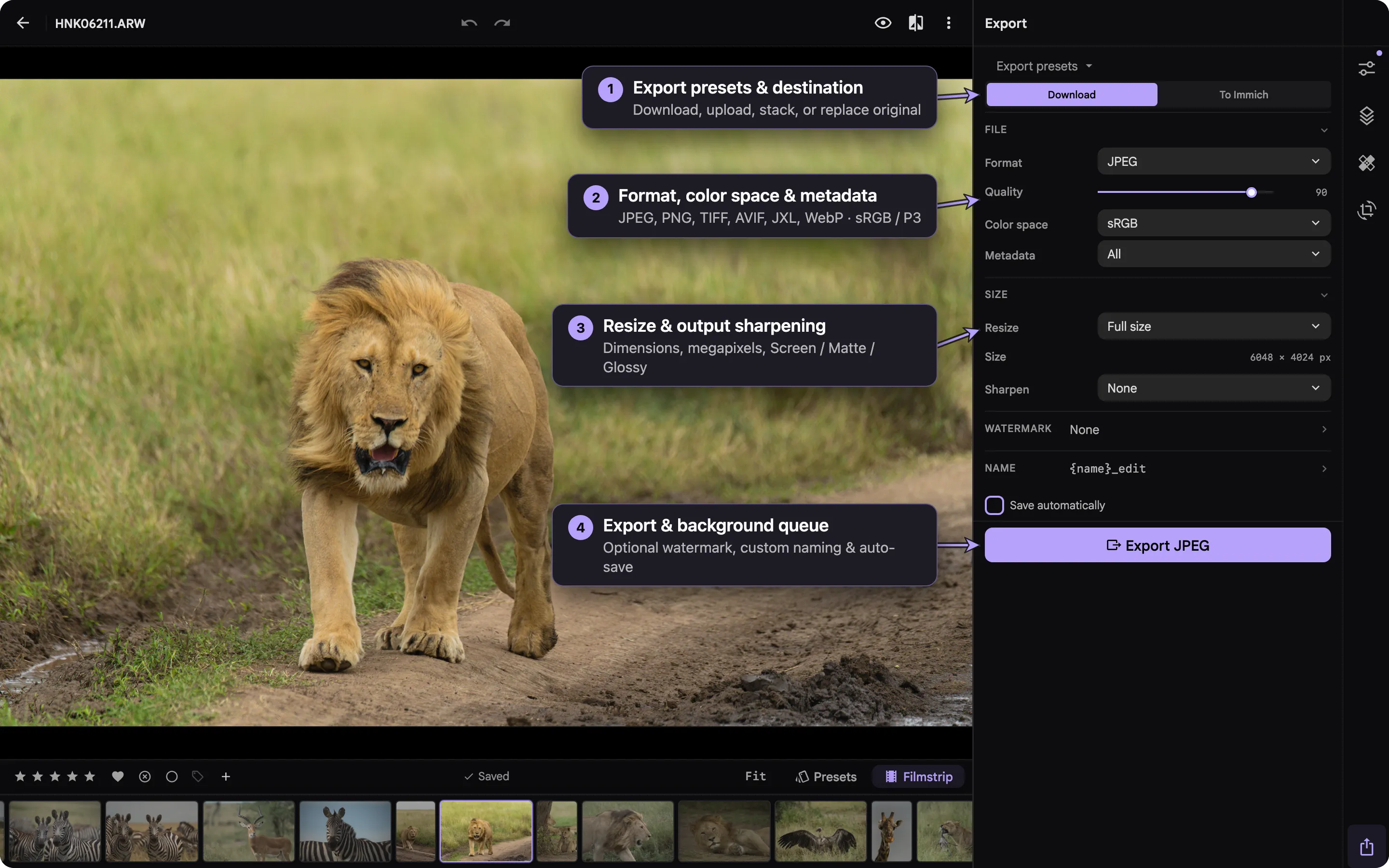
Open Export from the tool rail (or Share on phone and tablet) to render full-resolution files on the server, either for one photo or a grid selection.
Formats and color
Section titled “Formats and color”- Formats: JPEG (8-bit), PNG (8/16-bit), TIFF (8/16-bit), WebP (8-bit lossy or lossless), HEIC (8-bit), AVIF (8-bit), and JPEG XL (8/16-bit).
- Color space: sRGB or Display P3 with embedded ICC profile and automatic gamut mapping.
- Resize: constrain by width × height, megapixels, or percentage, with optional upscaling.
- Output sharpening: post-resize sharpening tuned for Screen, Matte, or Glossy paper at low, standard, or high strength.
- Metadata: keep safe EXIF (all, all except GPS location, or none).
- Watermark: overlay an admin-imported PNG watermark with configurable size, opacity, inset, and 9-point placement.
- Filenames: format output names with
{name},{date},{seq}, and{preset}tokens.
Destinations
Section titled “Destinations”Upload to Immich
Section titled “Upload to Immich”Uploads the rendered file back to Immich, copying the original’s date, time zone, location, description, and rating:
- Add to albums, apply tags, or copy the favorite state.
- Stack with original: group the export with the RAW (either can be the stack primary).
- Replace original: transfers albums, shared links, favorite state, and stack to the upload, then moves the original to the Immich trash. Requires Immich trash to be enabled and owner permissions.
- Upload conflict policy: when re-exporting a photo, choose Keep both, Replace, or Skip.
Save, share, or copy
Section titled “Save, share, or copy”- Download: saves a single file or a ZIP archive for batch selections. Enable Save exports automatically in Settings > Preferences to download as soon as a render finishes.
- Share: sends a single exported photo to your device’s native share sheet where supported.
- Copy image: copies the rendered photo to the clipboard as a PNG.
Export presets and batch jobs
Section titled “Export presets and batch jobs”Save named Export presets from the export panel (manage them under Settings > Account > Export presets). You can run multiple export presets at once — each destination runs as a persistent background job with progress, retry for failed photos, and optional browser completion notifications.