

Workspace
immich-edit adapts to desktop, tablet, and phone screens while sharing the same tools and account settings across every device.
Desktop, tablet, and phone
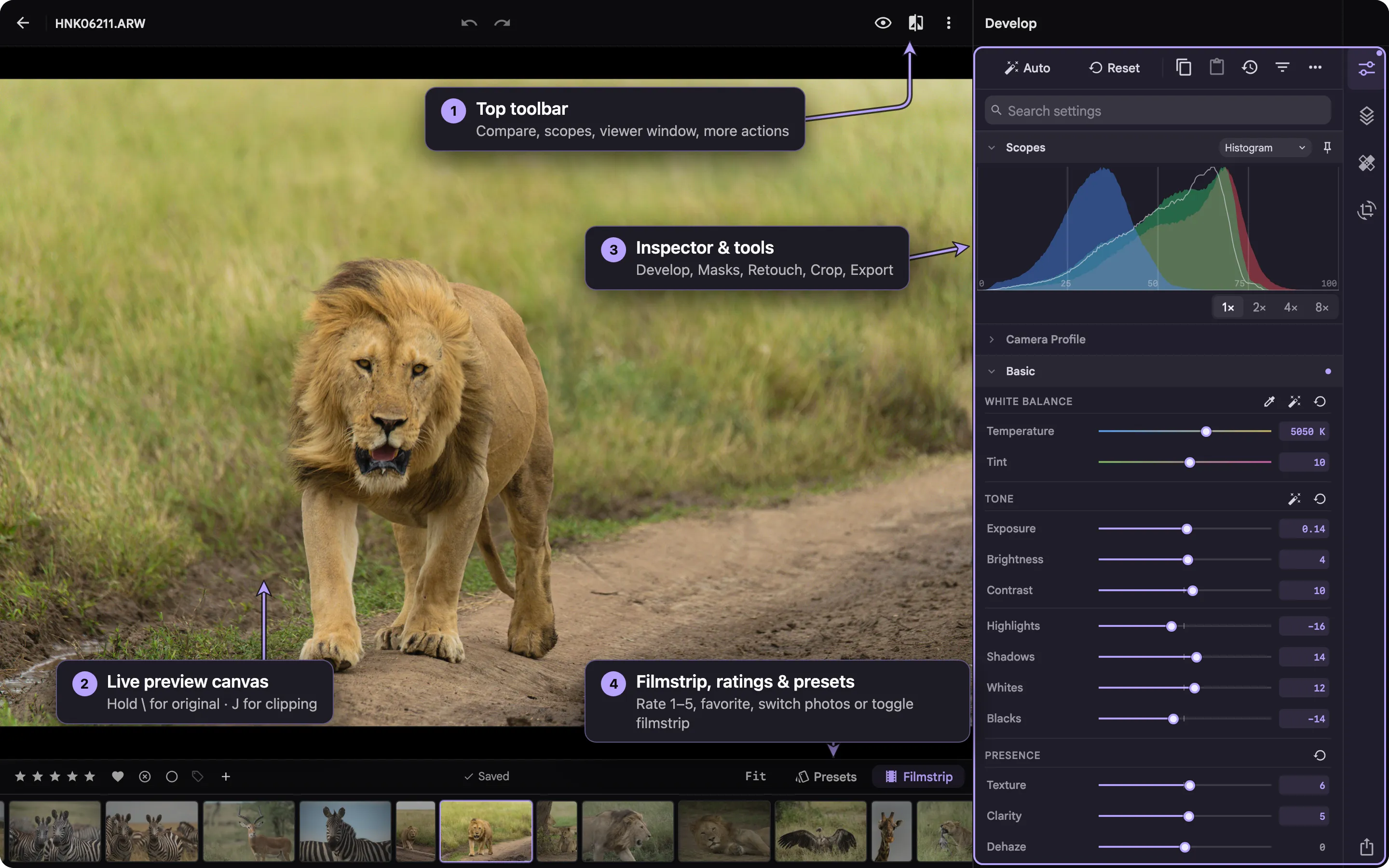
Section titled “Desktop, tablet, and phone”- Desktop: left library sidebar, central photo stage, optional bottom filmstrip, and right tool rail (Develop, Masks, Retouch, Crop, Export). Drag the inspector edge to resize or collapse it; width and state persist.
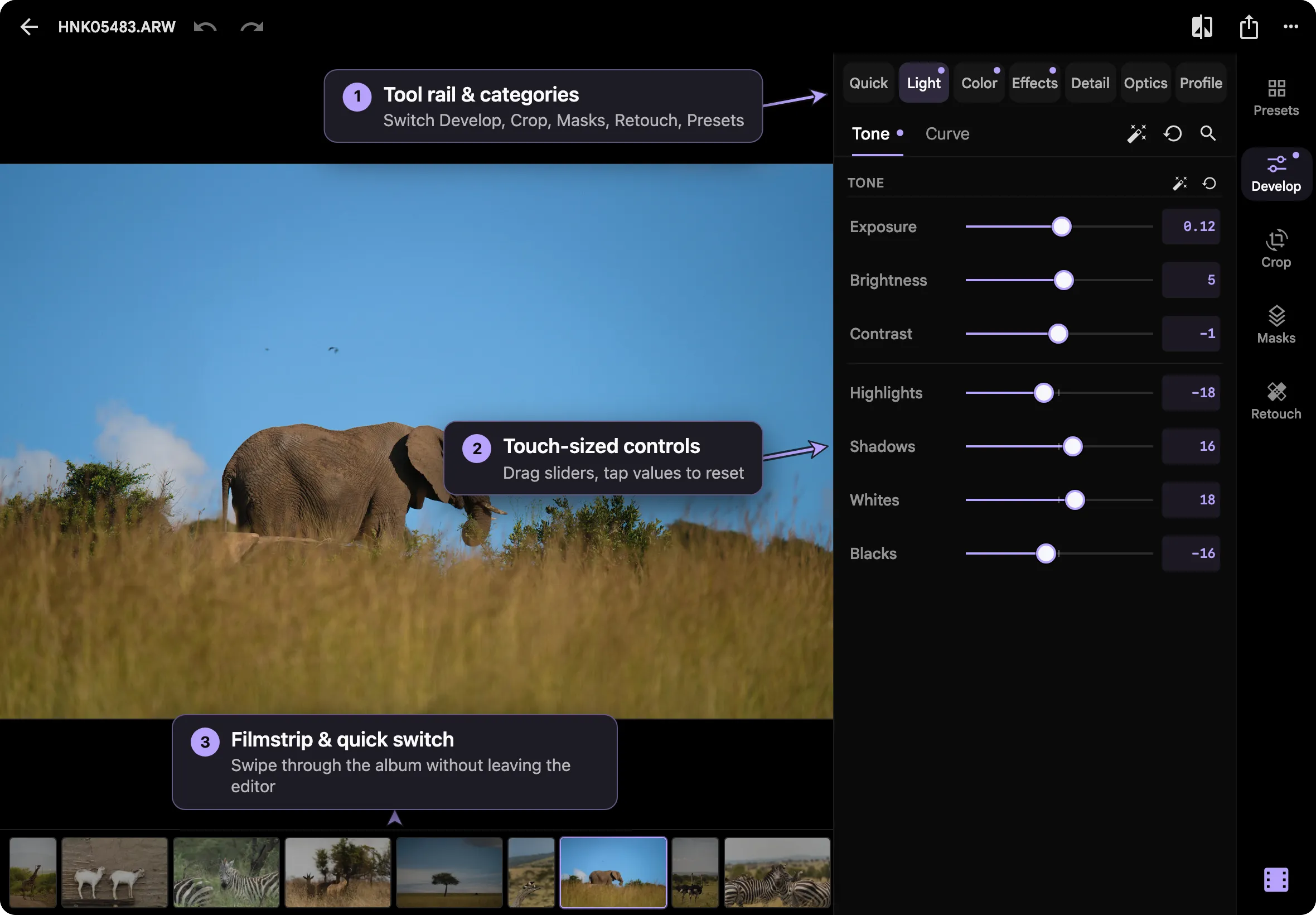
- Tablet: touch layout with a collapsible sidebar in landscape and a side inspector in the editor.
- Phone: bottom navigation bar for browsing, bottom tool bar with a resizable tray in portrait, and a side panel in landscape. Drag a sheet’s handle down to dismiss it.
Override the automatic layout per browser under Settings > Preferences > Layout (Auto, Desktop, or Touch).
Find tools fast
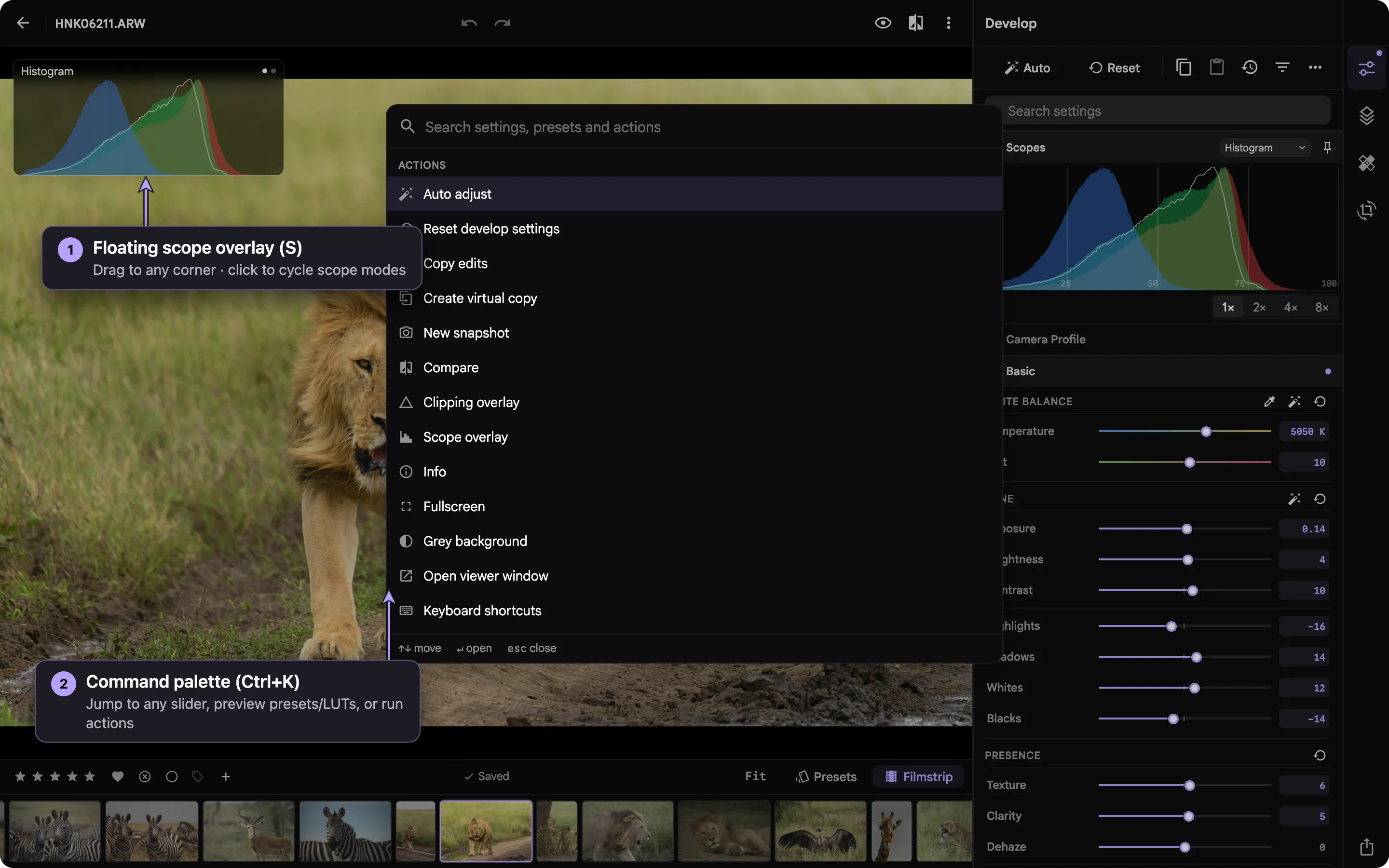
Section titled “Find tools fast”- Command palette (
Ctrl+Kon desktop): jump to any slider, preview presets or LUTs on hover, or run any editor action. - Search settings: inline filter at the top of Develop (and in the touch view row). Combine with Modified only to show just the sliders you have changed.
- Quick section: right-click any slider (or long-press its label on touch) and choose Pin to Quick to keep favorite controls at the top of Develop across devices.
- Customize sections: reorder or hide Develop panels from the
⋯menu in the panel header (Customize Develop on touch). Hidden panels still appear whenever they hold active edits.
Viewing and proofing tools
Section titled “Viewing and proofing tools”- Viewer window: choose Open viewer window from More editor actions or the command
palette (desktop) to open a live, chrome-free preview window on a second monitor. Press
Finside it for fullscreen. - Scope overlay (
S): floats a compact histogram, waveform, RGB parade, or vectorscope over the photo. Drag it to any corner; click it to toggle modes. - Navigator: appears automatically when zoomed in (
Zor double-tap) to pan around the frame. - Grey background, clipping overlay (
J), and Soft proof (sRGB / Display P3 with gamut warning) live in More editor actions. - Fullscreen (
F) hides chrome in the loupe, compare, survey, and editor views.
Appearance, shortcuts, and installed app
Section titled “Appearance, shortcuts, and installed app”- Appearance: choose Dark (default), Light, or System, plus 12 built-in theme families and custom accents under Settings > Preferences > Appearance. Canvas, scopes, and guides stay color-neutral in every theme.
- Keyboard shortcuts: press
?anywhere to search or rebind keys. Custom bindings sync to your account; see keyboard shortcuts. - Installable app: over HTTPS, install immich-edit from Settings > Preferences > Install app (or Safari’s Add to Home Screen / Add to Dock) for a standalone window.