
Masks, retouch, and crop
Local adjustments, spot removal, and framing live in the Masks, Retouch, and Crop tabs.
Each photo supports up to 8 mask layers (up to 8 shapes per layer, 32 shapes total). Every mask layer has its own exposure, tone, white balance, saturation, vibrance, texture, clarity, and sharpening sliders.
Build a mask
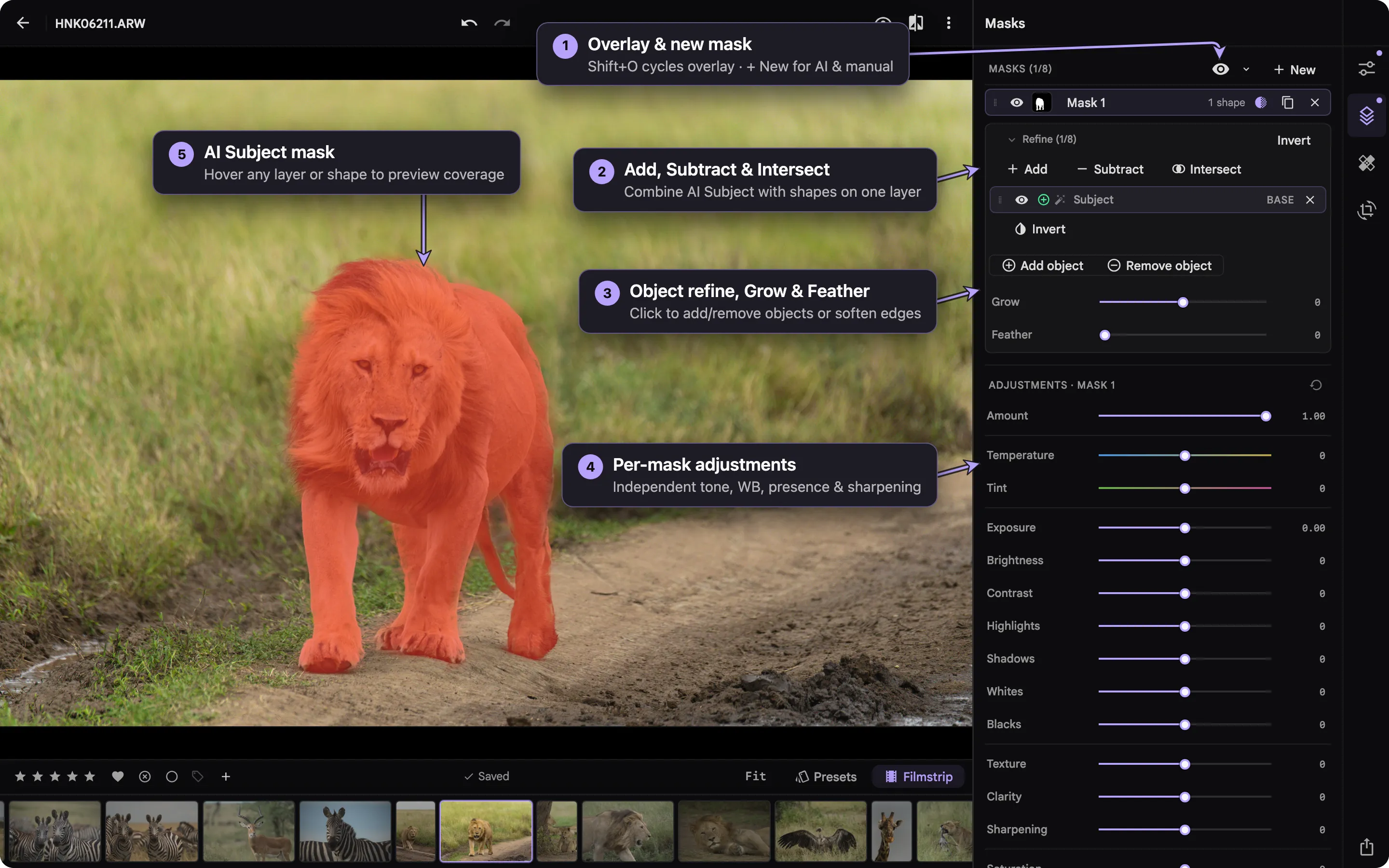
Section titled “Build a mask”Start a layer with an AI selection or a manual shape, then refine it with Add, Subtract, or Intersect:
- AI masks (require admin-installed models): Subject, Background, People, Sky,
Depth, Scene, Click to select, and Box select. In Click to select, click to
include or
Shift-click / right-click to exclude. - Manual shapes: Brush, Linear gradient, Radial gradient (rotatable), Polygon, Luminance range, and Color range.
- Range sampling: toggle Sample on a luminance or color range mask and click or drag a box
on the photo (
Shiftadds to the sample).
Fast mask controls
Section titled “Fast mask controls”- Hold
Altwhile painting with Brush to erase temporarily. - Hold
Alt+ scroll to resize a brush, linear, radial, or polygon mask;Alt+Shift+ scroll adjusts feather. - Press
Shift+Oto cycle mask overlay modes (tint, color on B&W, white on black); hover any layer or shape row on desktop (or hold on touch) to preview its coverage. - Drag layer or shape rows to reorder them.
Retouch
Section titled “Retouch”Use Retouch for non-destructive Heal (blends texture and tone) and Clone (copies pixels directly) strokes:
- Paint over a spot or distraction; immich-edit picks a nearby source patch automatically (on touch, the first tap sets the source, then one finger paints).
- Drag the source ring to refine the sample area, or adjust Size, Feather, and Opacity for the selected stroke.
- Toggle Visualize to highlight sensor dust and faint spots in high contrast.
Crop and transform
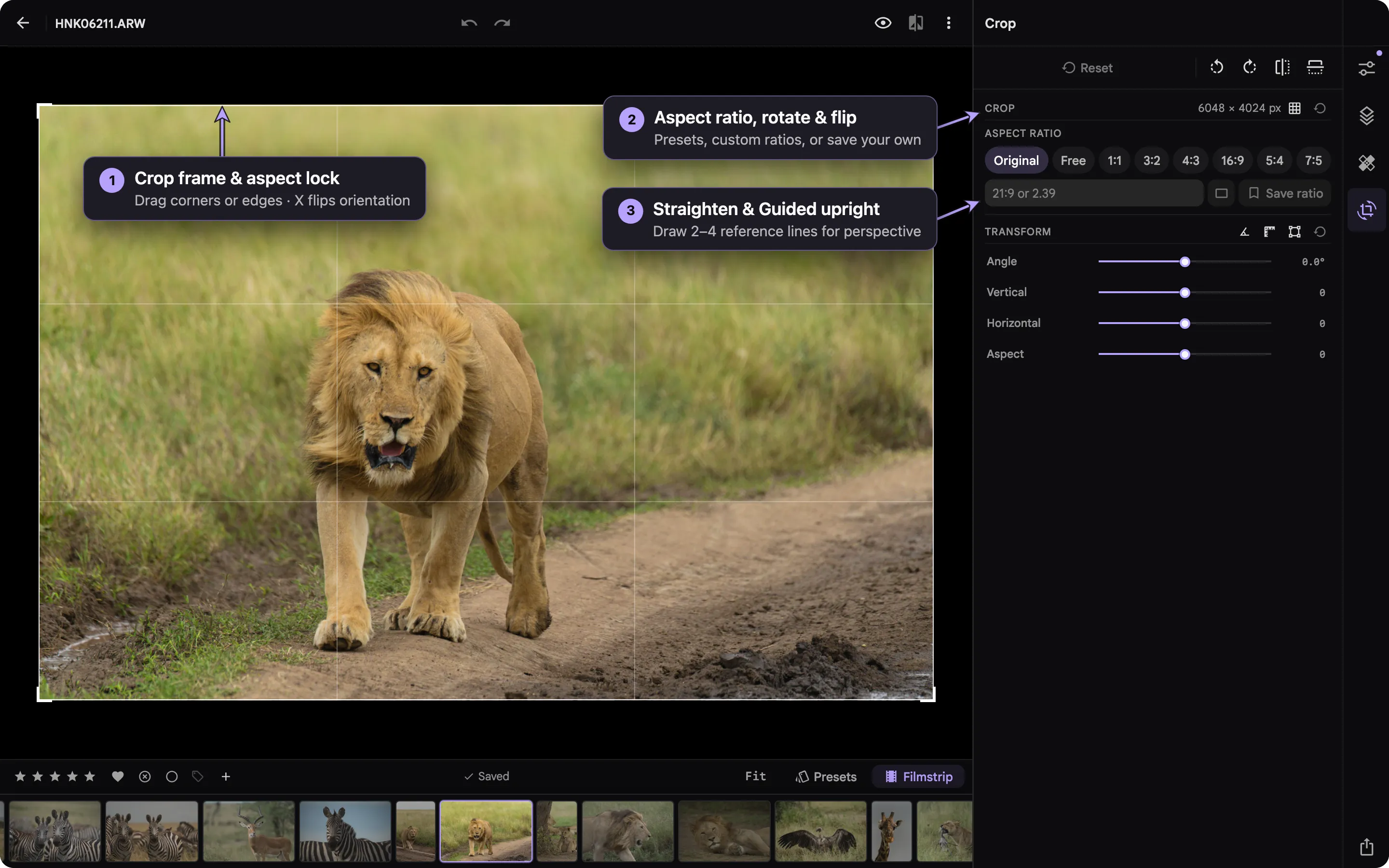
Section titled “Crop and transform”Open Crop (Shift+R) to frame, level, and correct perspective:
- Crop: pick an aspect ratio chip, type a custom ratio, or select Save ratio to keep it. Rotate 90° or flip from the action row above.
- Straighten (
A): drag a line along a horizon or vertical edge to level the photo (Shift+drag inside the crop does the same). On touch, drag the live straighten dial. - Perspective & Guided upright: adjust vertical/horizontal keystone and aspect, drag four Corner handles, or toggle Guided upright and draw 2–4 vertical (blue) and horizontal (amber) lines to solve perspective automatically.